

How Do I Add a User to a Course

Students and the instructor of record are automatically enrolled in your Canvas course, but you can manually invite additional users if the Add People button is available on the People page.
Course Invitations
- When you manually add a user to a course, Canvas sends them an invitation. However,
users in roles other than “Instructor” won’t be able to access the course until it
is published.
- View available roles and what permissions each has on our page "Roles available in Canvas."
- Users must accept the invitation to participate; until then, their status remains pending.
- If your +People button is greyed out, then your course is most likely concluded, and you cannot add someone manually. For assistance, contact canvas@montana.edu.
Open People
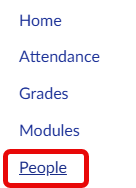
In Course Navigation, click the People link.
Add People
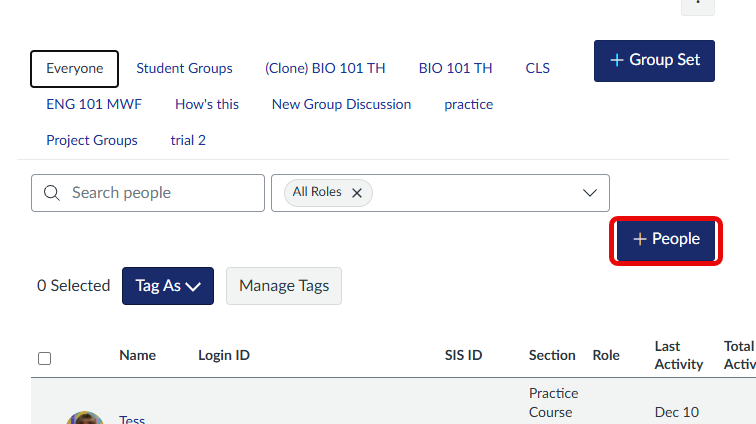
Click the Add People button.
Select User Search
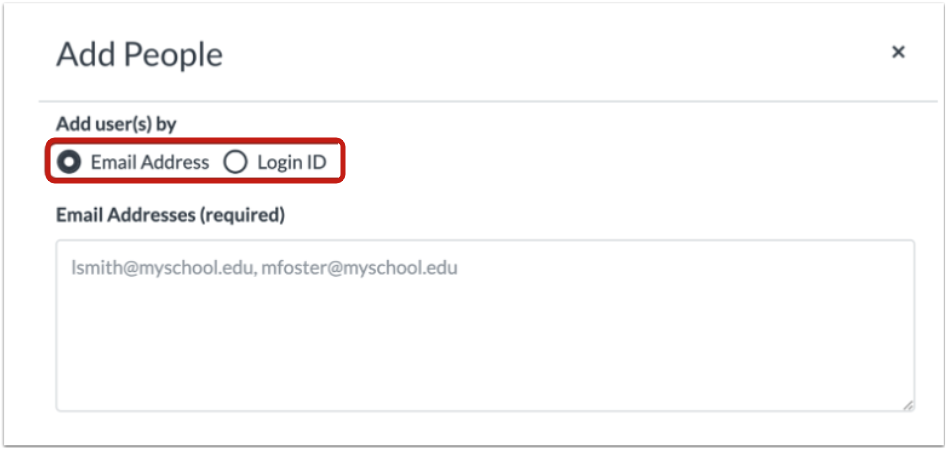
To add people, you can search for users by using one of the two options: Email address or Login ID.
To select a search option, click the circle next to your preferred search method.
Notes:
- If you are copying and pasting user information from a spreadsheet, you do not have to filter out information that does not apply to your search option. For instance, if you copy in a line with an email address and login ID and select the login ID search option, Canvas will disregard the email address and only search for users with the entered login ID.
- To add multiple users, separate user information using a comma or a line break.
Search by Email
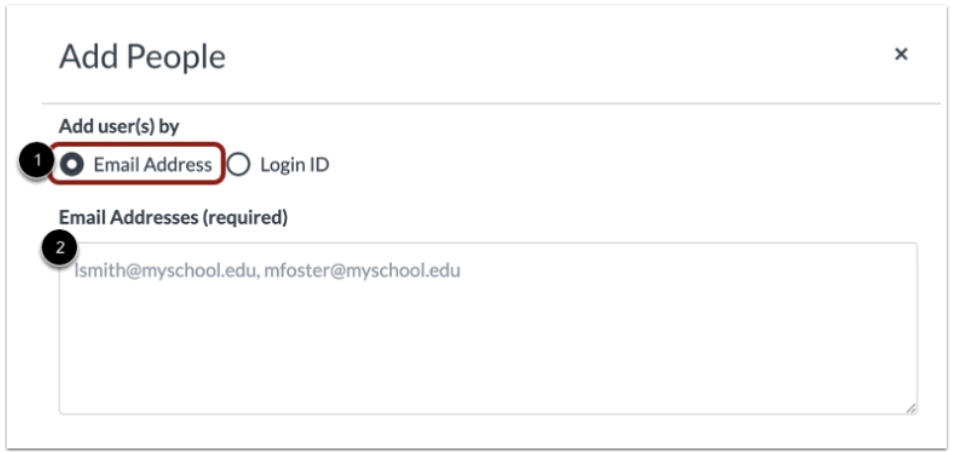
1. By default, the search field is set to search by email address.
2. In the text field, you will need to enter the university-assigned email address for the user. You can copy and paste multiple users at one time by placing a comma or line break between users.
Search by Login ID
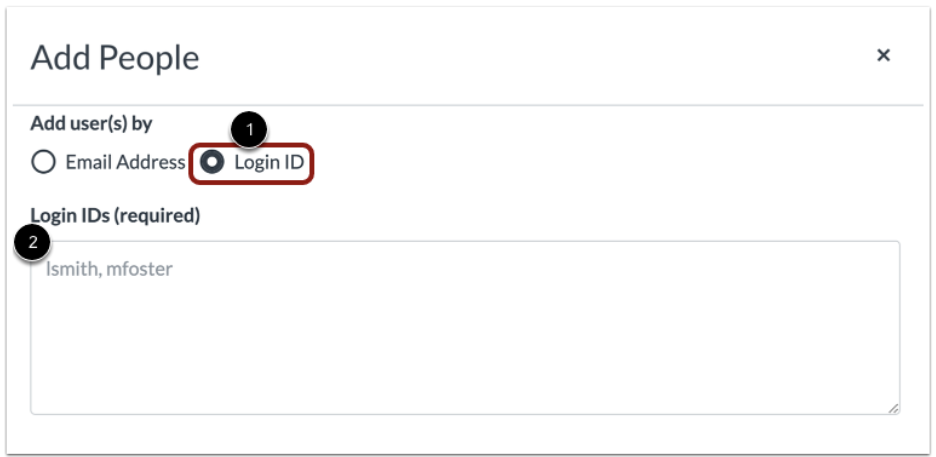
1. To add a user by login ID, click the Login ID circle.
2. In the text field, enter the login ID for the user. You can copy and paste multiple login IDs at one time by placing a comma or line break between login IDs.
The Login ID, refers to a user’s NetID (this is the same login they use for other university systems). If you know someone’s NetID, you can use this field to add them. However, if you don’t have that information, you should be able to locate it within Banner or using this tool.
Select User Details
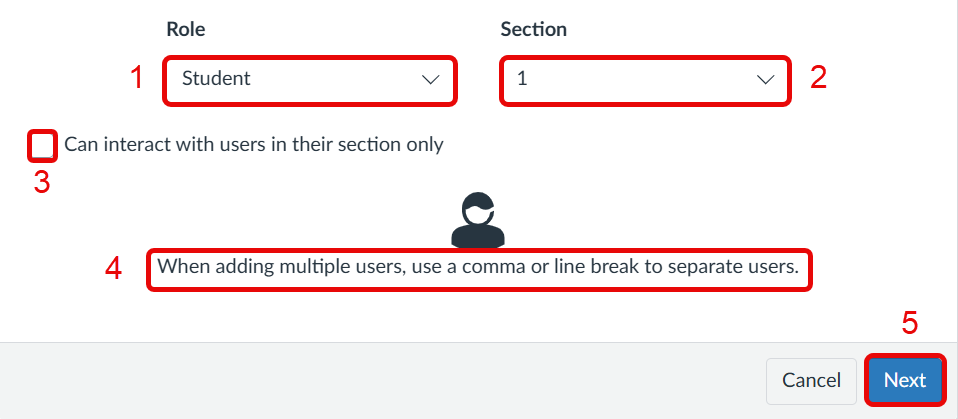
1. In the Role drop-down menu, select the appropriate role for the user you are adding.
2. In the Section drop-down menu, select the section where the user should be enrolled.
3. If you would like to limit the user to interacting only with other users in their assigned section, select the Can interact with users in their section only checkbox.
4. In the user entry field, enter the user's MSU NetID, university email address, or other supported identifier. To add multiple users at once, separate entries with a comma or place each user on a new line.
5. Click the Next button.
Note: If you are adding multiple users at the same time, all users inherit the same role and section.
Add Users
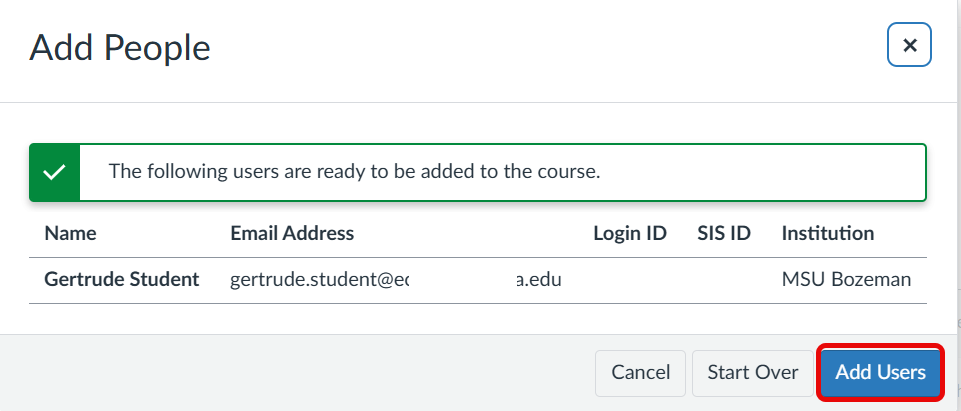
If Canvas finds an existing user, you can click the Add Users button to send a request to the user.
View Search Results
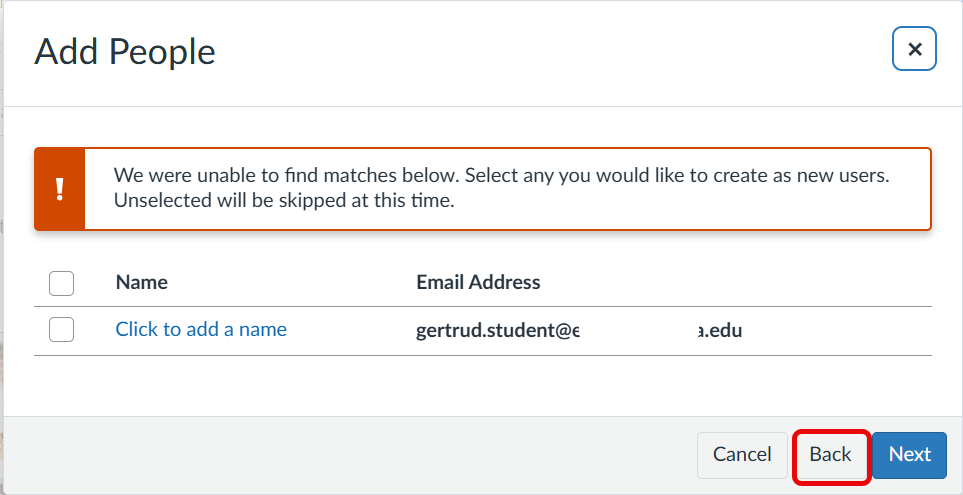
If Canvas is not able to find a match for the user(s), Canvas will notify you that a match was not found.
Click the Back button to try a new search.
View Pending Enrollment

Until the user accepts the course invitation, the user's status will display as pending in the People area of your course.
Once the user has accepted the course invitation, you can interact with the user in the course.

For some users added, you may be able to edit a user's role in Canvas.
Note: It could take up to 24 hours for users to receive their invitations. Canvas will not consider the user to be enrolled—and won't recognize the user anywhere in Canvas—until the invitation has been accepted. If necessary, you can resend course invitations.
+People Button is disabled
Before the start date of the course and once it has concluded, the +People button in the People tool will be disabled (greyed out), preventing you from adding users. If you need to add someone to a concluded course, please contact us at canvas@montana.edu, and we’ll be happy to assist.
Adapted from Instructure's resource "How do I add user to a course?"