

How to Assign Different Due Dates to Students or Sections

By default, assignments are assigned to Everyone in a course. The Assign To feature allows instructors to create additional assignment groups with different due dates, availability dates, and access windows for specific students or sections.
This feature is commonly used when a student has an approved extension, accommodation, or other circumstance that requires different assignment dates than the rest of the class.
Important
When creating a different due date for a student or section, do not remove Everyone from the original Assign To field.
Instead, leave the original assignment group in place and use + Assign To to create a separate assignment group for the student or section that needs different dates.
If Everyone is accidentally removed from an assignment that already contains submissions or grades, those submissions and grades will disappear from the Gradebook. Don't worry—they can be restored by adding Everyone back to the original Assign To field.
Open the Assignment
1. Open an existing assignment or create a new assignment.
2. Enter the assignment details as needed.
Locate the Assign To Section
1. Scroll to the Assign Access area near the bottom of the assignment settings page.
The assignment will typically display:
-
- Assign To: Everyone
- Due Date
- Available From
- Until
These settings apply to all students in the course unless additional assignment groups are created.
Create an Additional Assignment Group
To create a different due date for a student or section:
- Leave the original Assign To: Everyone group unchanged.
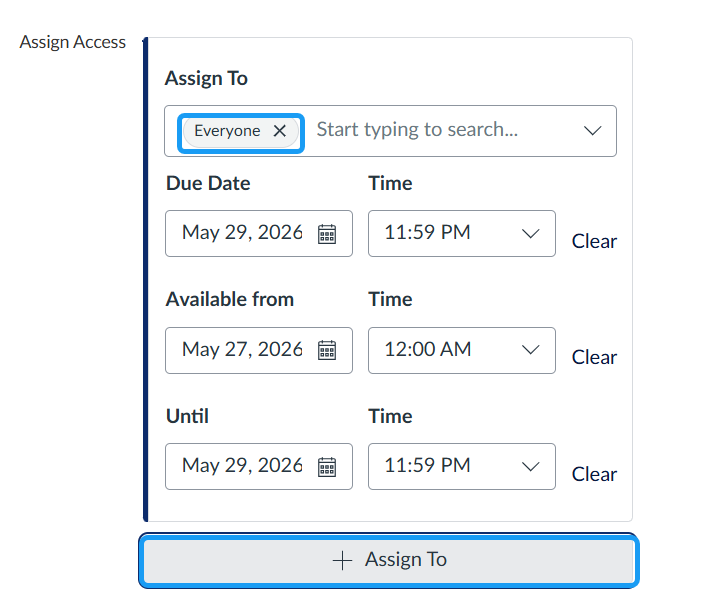
2. Click Add Assign To.
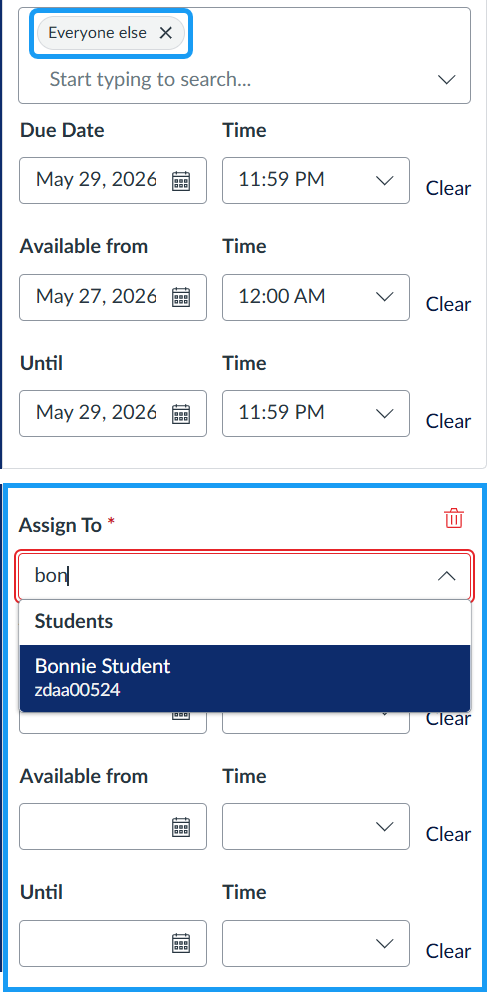
3. A new assignment group will appear below the original one.
Note: After you add another Assign To group, Canvas may update the original group from Everyone to Everyone Else. This keeps the original dates assigned to the rest of the class while allowing different dates for the student or section added below.
Select the Student or Section
In the new Assign To field:
- Begin typing the student's name or the section name.
- Select the desired student or section from the list of results.
You may assign multiple students to the same assignment group if they should receive the same due date and availability settings.
Enter Alternate Dates
For the new assignment group, enter the desired dates:
- Due Date – The date and time the assignment is due.
- Available From – When students can begin accessing the assignment.
- Until – When access to the assignment ends.
The original dates for the rest of the class remain unchanged.
Save the Assignment
When finished:
- Click Save to save the assignment as a draft.
- Click Save & Publish to make the assignment available to students.
Adapted from Instructor's resource "How do I assign an assignment to everyone, individual students, differentiated tags, or sections?"