

Phase 4: View and Analyze Your Data
After grading is completed, Outcome mastery data can be accessed in two locations.
Course-Level View: Learning Mastery Gradebook
- Click Grades in Course Navigation.
- Open the Gradebook dropdown menu.
- Select Learning Mastery Gradebook.
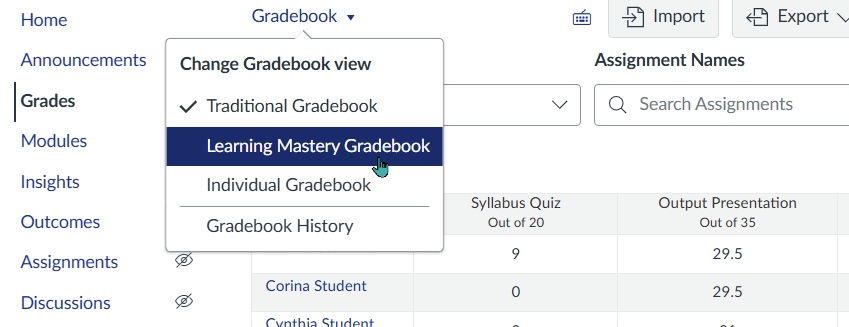
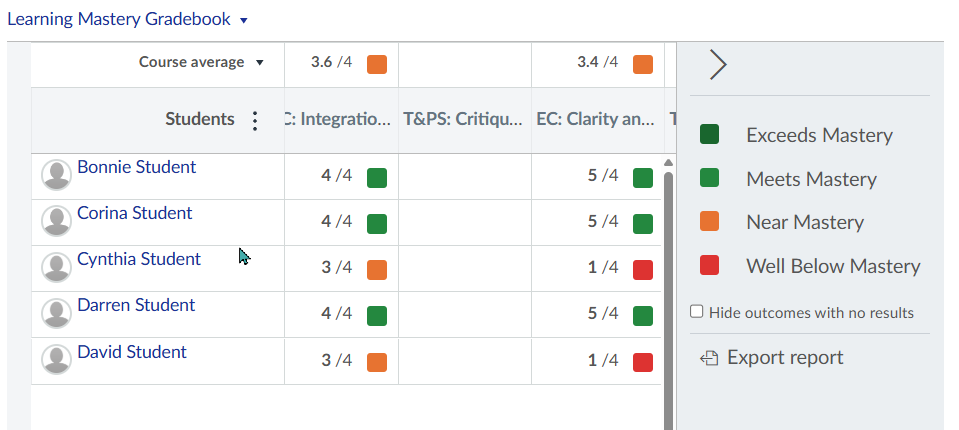
In the Learning Mastery Gradebook, you can view:
- Student mastery by outcome
- Class averages
- Color-coded proficiency levels
Program or Term-Level View: Insights
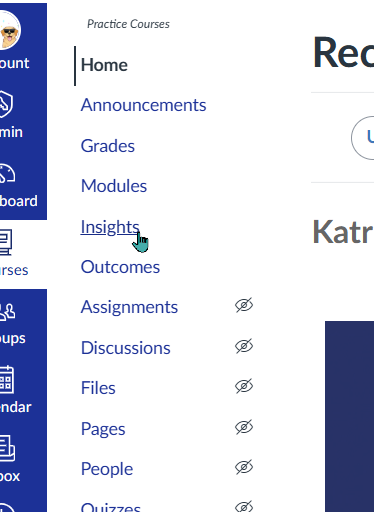
- Click Insights in Course Navigation.
- Review the Workflow for Faculty Users for Insights by eLumen tutorial for help interpreting and using Insights reports.
In Insights, available reports and views may include:
- Aggregated outcome performance
- Trends across sections
- Distribution charts
- Reflections or action plans (if enabled at your institution)
Troubleshooting: Why Don’t I See Data?
If no data appears in Insights, check the following:
- Outcomes are attached to a rubric
- The rubric was used during grading in SpeedGrader
- Assignments are published
- Students have been graded
- Insights is enabled in Course Navigation