

Phase 3: Generate Outcome Data (Grading)
Outcome mastery data is created when student work is assessed using a rubric in SpeedGrader.
Grade Using the Rubric
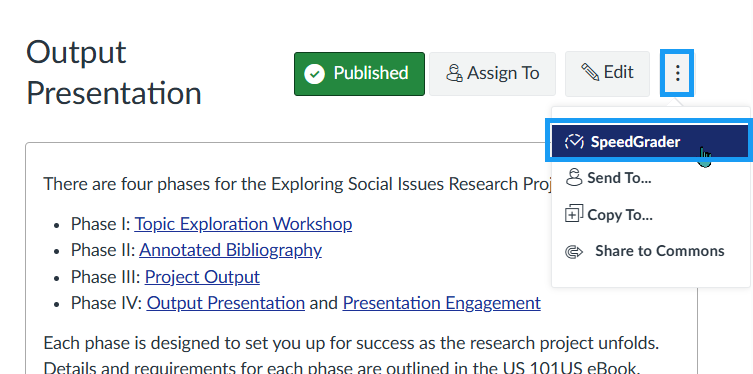
- Open SpeedGrader.
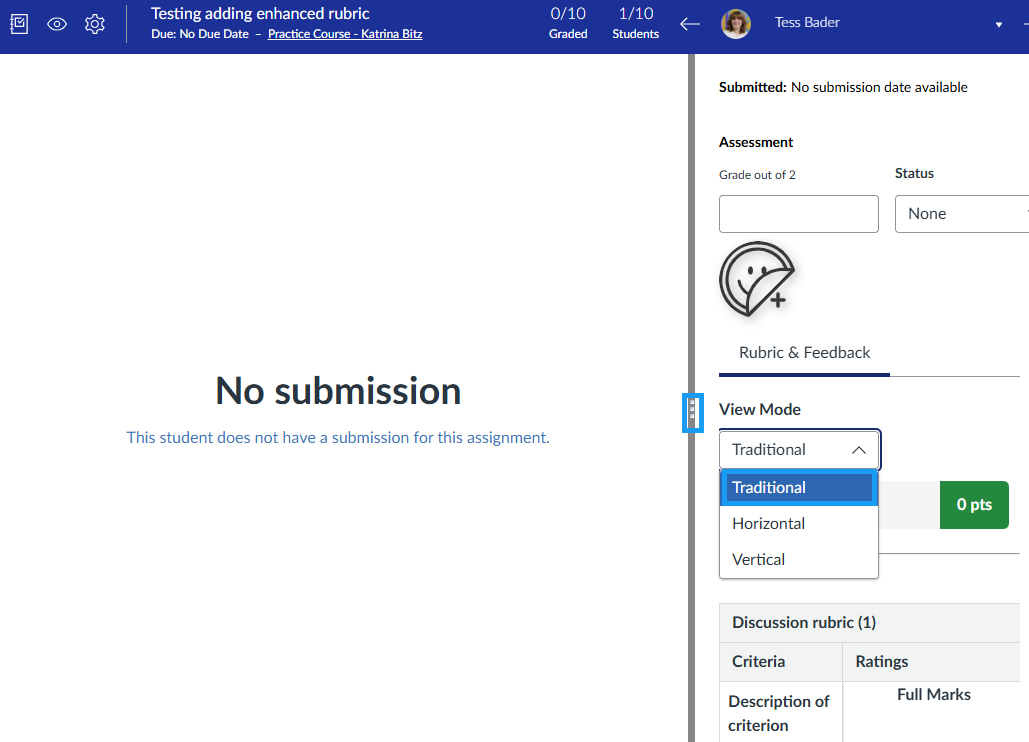
- Choose your preferred View Mode from the dropdown menu. Traditional is the most widely used view. To expand the rubric view, select and drag the three-dot divider in the middle of the screen to the left.
- Your rubric may contain two types of criteria that are assessed during grading. Be sure to select a performance level for each row in the rubric.
- Yellow: Instructor-created assignment criteria
- Blue: Institutional Learning Outcomes (IOLs) used to measure learning mastery
Note: In the example image, the Institutional Learning Outcomes (IOLs) are not assessed because Use this criterion for scoring was not enabled when the outcome was added to the rubric in Phase 2.
- Select Submit Assessment to complete grading and generate outcome mastery data.